Without Smart Clicker
Watch and wait
- Keep checking the page
- Remember the exact time
- Repeat the same manual action
 Smart Clicker
Browser-based click scheduling
Select a webpage element, choose when it should run, and let Smart Clicker handle the click automatically.
No coding. No need to keep the extension popup open. Set the task and keep working while Smart Clicker waits in the background.
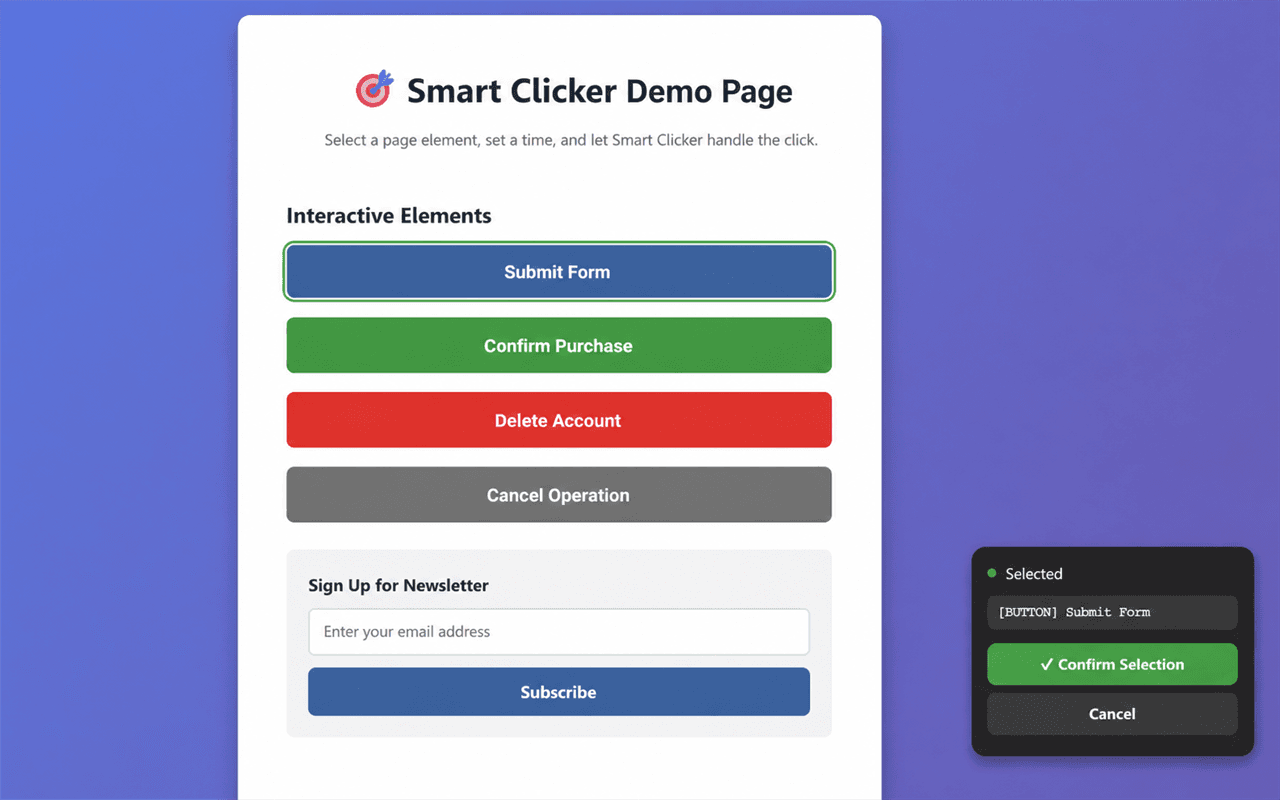
Pick the exact webpage element you want to automate.
Run a click after a countdown or on a schedule.
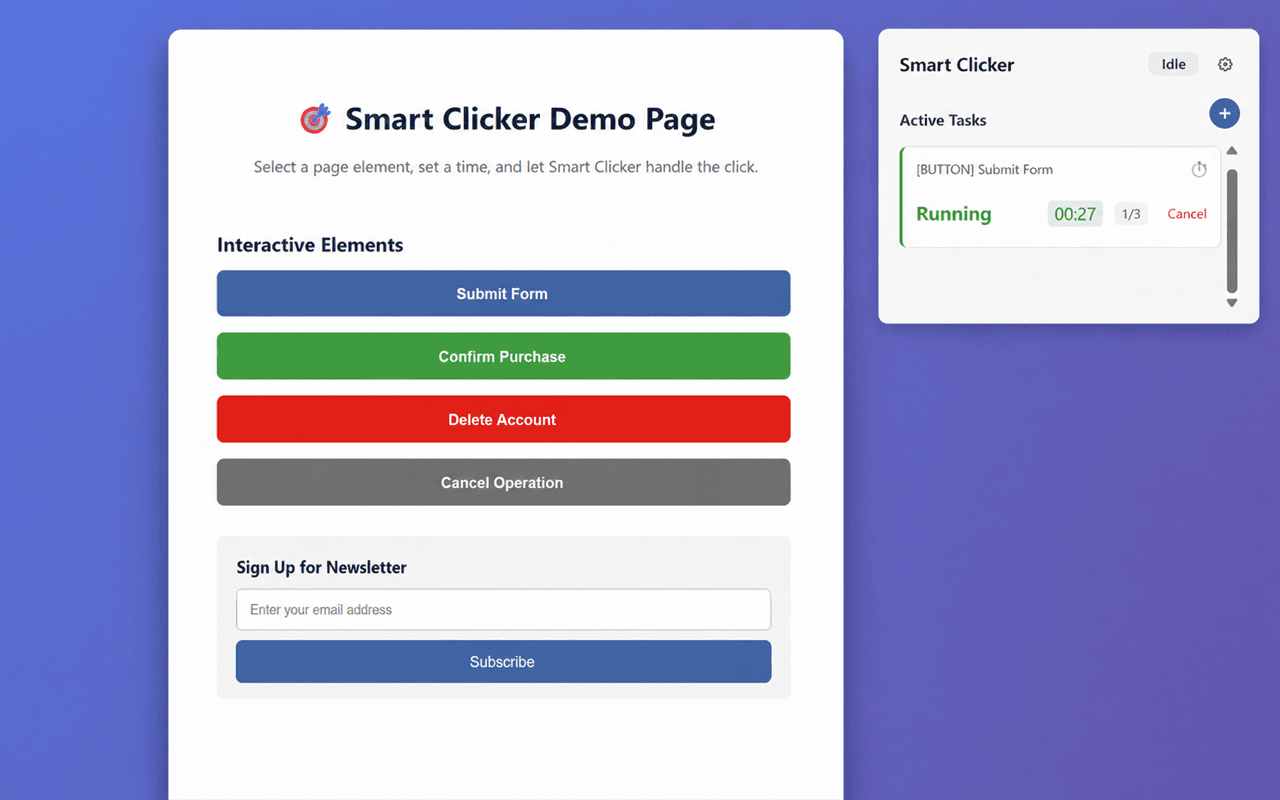
Manage independent clicking tasks at the same time.
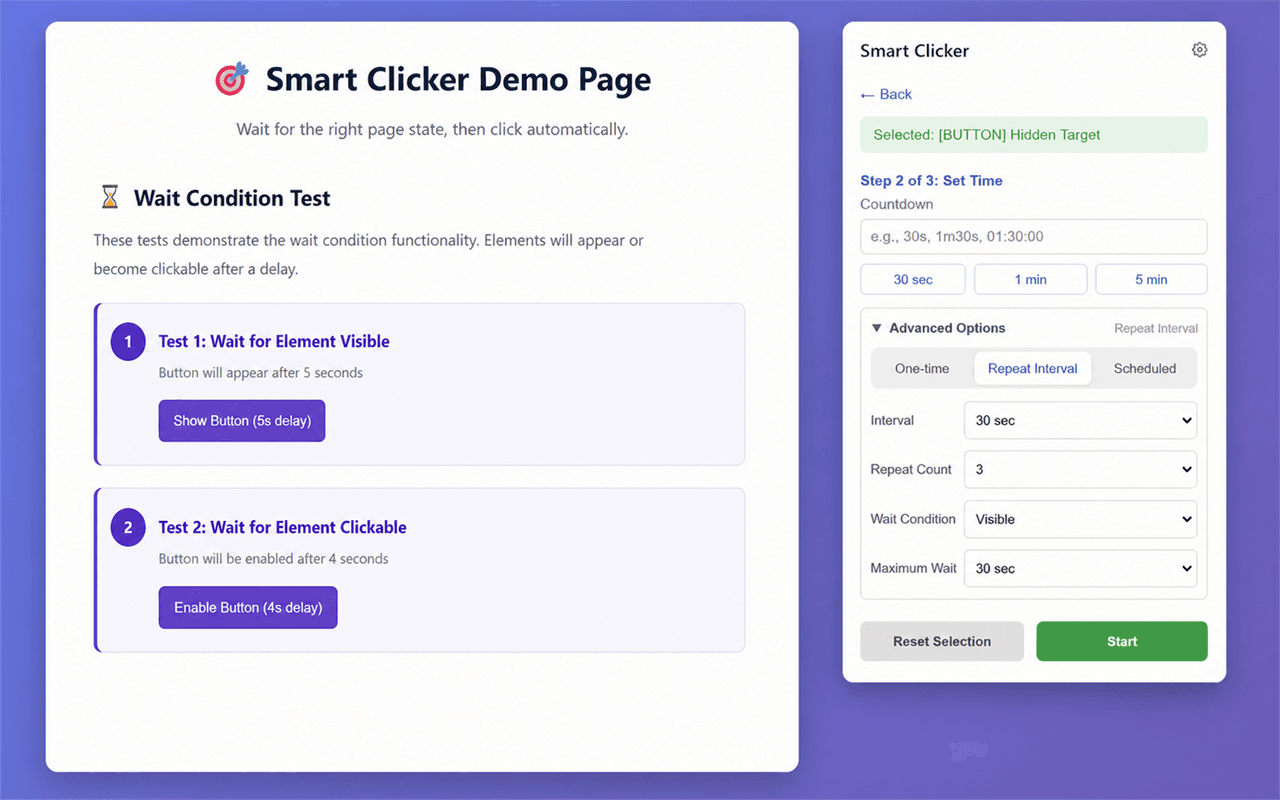
Wait until the page is ready before clicking.
Set it ahead of time
Some webpage actions make you wait for a specific time, repeatedly check a page, confirm the same thing again, or watch for a button to become available.
Instead of watching the page, prepare the task in advance.
Without Smart Clicker
With Smart Clicker
Core features
A focused webpage auto clicker for selecting targets, setting timing, and managing tasks without code.
Choose the target directly on the webpage. Smart Clicker highlights the element and verifies your selection before the task starts.
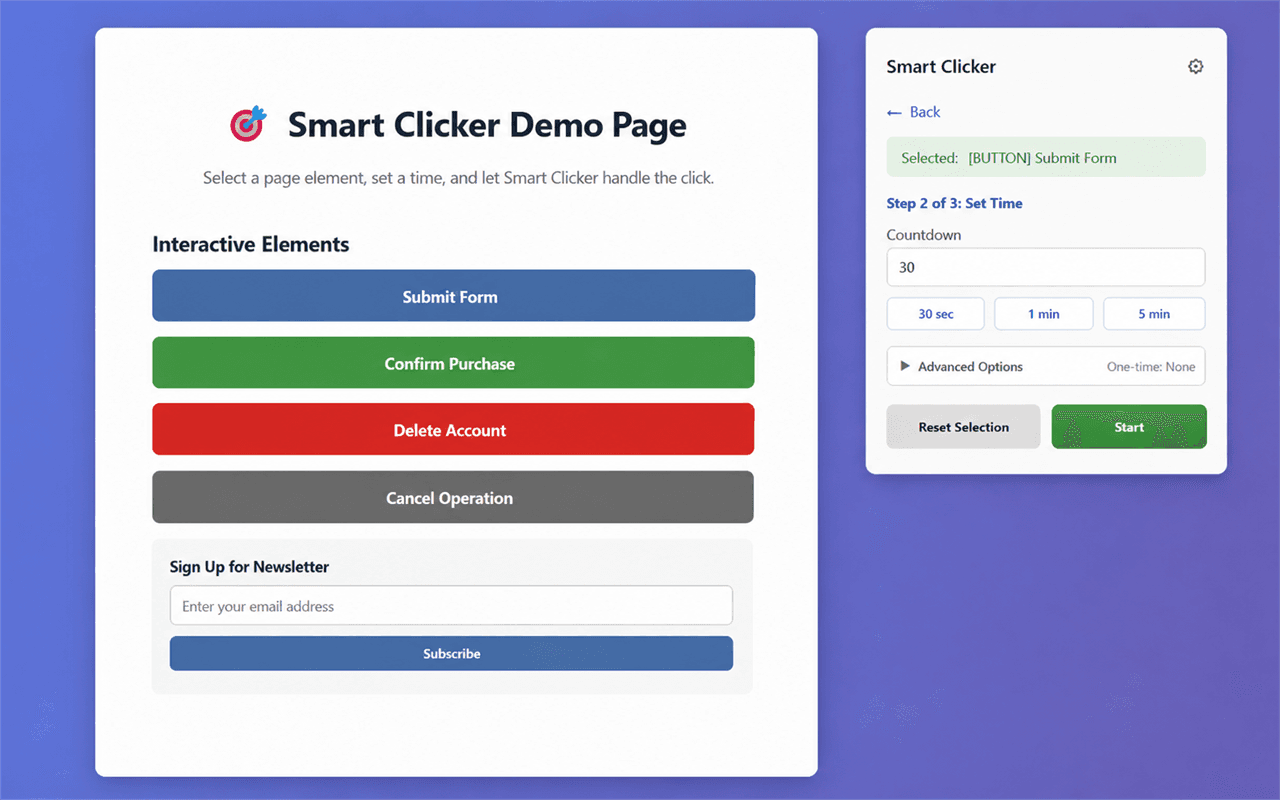
Target the element—not a fixed screen coordinate.Enter a countdown such as 30 seconds, 5 minutes, or 1 hour 30 minutes. Timing continues in the background after you start.
Flexible countdown formats for the timing you need.Use a one-time countdown, repeat interval, daily schedule, or weekday schedule for recurring browser work.
From one click to a predictable routine.Each task keeps its own target, timing, status, and lifecycle, so separate webpage actions stay easy to review.
Run and review tasks independently.Three simple steps
Create a timed or scheduled automatic button click without writing a script.
Choose the webpage element you want Smart Clicker to click.
Enter a countdown or open Advanced Options for recurring schedules and wait conditions.
Start the task and continue working while Smart Clicker waits in the background.
Advanced options
The basic workflow stays simple. Advanced Options provide more control when needed.
Every 10 minutes
Repeat a selected webpage click at a configured interval.
Every weekday at a selected time
Schedule a task for daily or selected weekday routines.
Visible · Clickable · Matching page text
Wait for the page state you configured before attempting the click.
Product preview
Real Smart Clicker states from selecting a target through scheduling and task review.
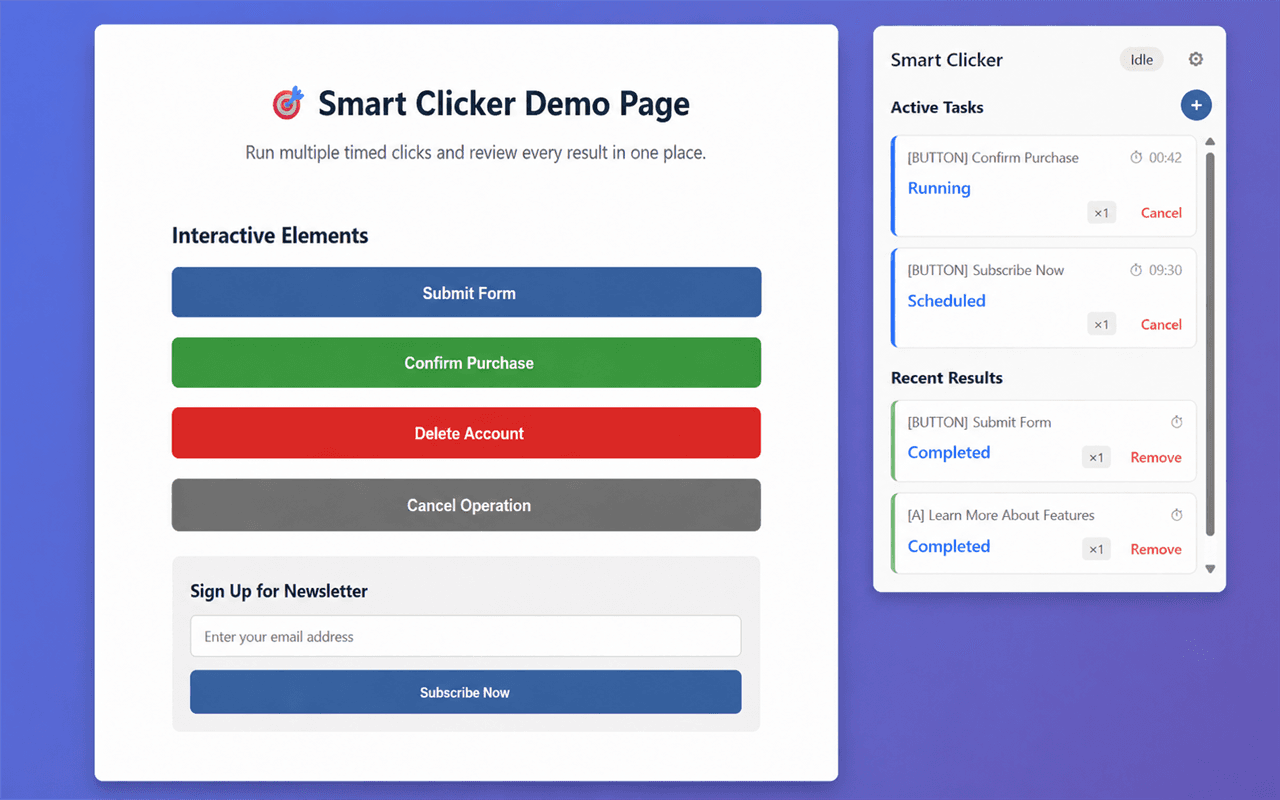
Why Smart Clicker
Focused safeguards and browser-native behavior keep simple clicking tasks understandable.
Smart Clicker targets actual webpage elements instead of fixed screen coordinates.
The extension popup does not need to remain open while an active task waits.
If the selected page disappears or changes, Smart Clicker does not silently move the task to an unrelated page.
Task configuration remains stored locally in the browser, with limited anonymous product analytics disclosed below.
Use cases
Use Smart Clicker for focused, permitted webpage actions where timing or repetition matters.
Smart Clicker assists with the configured webpage click. Availability, eligibility, queues, verification, and final results remain controlled by the website.
Privacy & safety
Smart Clicker separates local task configuration from a limited set of anonymous product-usage events.
Task-related configuration stays locally in your browser.
Smart Clicker sends a limited set of anonymous product-usage events to Mixpanel. These events do not include:
Questions, answered
A timed auto clicker performs a click after a countdown or according to a schedule. Smart Clicker is designed specifically for webpage elements.
Webpage elements. You visually select the target on the page, so the task is not based on a fixed screen coordinate.
Yes. Active tasks use browser background scheduling, so the extension popup does not need to remain open. This does not mean tasks run after the browser is completely closed.
Smart Clicker supports one-time countdowns, repeat intervals, daily schedules, and weekday schedules.
Yes. Multiple tasks can keep independent targets, timing, status, and lifecycle.
Smart Wait can wait for an element to become visible, an element to become clickable, or matching text to appear on the page.
No. Browser-protected pages, extension store pages, some cross-origin iframes, and site anti-automation measures can prevent operation. Smart Clicker does not bypass CAPTCHAs or website protections.
No. Smart Clicker assists with the configured click. Availability, eligibility, queues, verification, and final outcomes remain controlled by the website.
Smart Clicker sends limited anonymous product-usage events to Mixpanel. They do not include page URLs, domains, element selectors, element text, personal information, or exact timer values.
Smart Clicker is currently available from the Chrome Web Store and Microsoft Edge Add-ons.
Ready when you are
Choose the target, set the timing, and let Smart Clicker handle the rest.